
Create and format notes
Write a note from scratch, add headings and checklists, and learn how saving and undo work.
You can write notes in Oudden without recording a meeting or using AI. The editor, folders and regular search are available on the free plan.
Create a note
- Click New note on the home screen. To create it inside a folder, use New note in that folder’s actions menu.
- Enter a title that will help you find it again, such as Client portal launch.
- Click Start writing... in the empty note, then start typing. You can change the title later by clicking it above the note.
For a note based on recorded speech, use Create a note from a transcript. The note and its transcript are separate: editing the note does not rewrite what was recognised in the recording.
Add headings and blocks
Place the cursor on an empty line in the main text of the note, outside lists, quotes, tables, code blocks or other containers. A + button appears beside it. Click it to open Formatting, then choose the block you need. If the button is missing, check that the line is empty, the cursor is outside those blocks and you are editing your own note rather than reading a shared document.
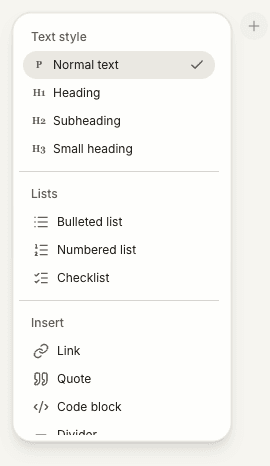
- Heading, Subheading and Small heading divide the note into topics.
- Bulleted list groups items; Numbered list gives them an order.
- Checklist adds items you can mark as complete.
- Quote, Code block and Divider separate different kinds of content.
- Link lets you enter a web address or email and confirm with Apply.
Scroll the menu to reach items at the bottom, such as Divider.
For a checklist, type the first item and press Enter for the next one. Click the checkbox to mark an item complete. Nested checklists can organise smaller steps under a task; use Tab and Shift+Tab within a list to change the level when the surrounding list allows it.
Emphasise text
Select a word or phrase. The floating toolbar offers Bold, Italic, Underline and Strikethrough. Choose a style to apply it to the selection; choose the active style again to remove it.
The block menu appears on an empty line; the emphasis toolbar appears when text is selected. They are two different controls.
Try a simple structure
For a client portal launch note, use a heading What we decided, followed by a short paragraph: “The first version includes project status, documents and questions for the team.” Add a second heading, Next steps, and a checklist:
- Build the prototype by Thursday.
- Show two clients on Friday.
- Review feedback on Monday.
You can keep writing below the checklist. For a ready-made note generated from your discussions, see Create and edit notes with AI.
Saving and undo
Edits save automatically; there is no separate Save button for ordinary note editing. ⌘Z on macOS or Ctrl+Z on Windows undoes the last editor change. Undo is not a permanent version history or a way to restore a deleted note.
Local saving and synchronisation are different steps. If Oudden shows a saving or version warning, follow Note saving problems before discarding text or resetting the app.
Delete a note
Open the note, click Delete note among its actions and read the confirmation. Deleting removes the note from the workspace and cannot be undone through the editor. Export a copy first if you need to keep it.
Related guides
Still need help?
If the guides did not answer your question, tell us what you need help with.