
Share a note and manage access
Invite people by email, choose link access and understand what each copy-link control does.
You can share a note with selected people or make it readable by anyone who has its link. Recipients get read-only access. Only the owner manages access, and changing access requires a connection.
Share with selected people
- Open your note and click Share in the top bar.
- Check that general access is Only people invited.
- Enter the recipient’s email in Add people by email and click Share.
- Check the recipient in the list. A verified matching account receives access; otherwise the entry waits for that email to be confirmed.
- Use Copy link inside this menu if you also want to send the link yourself.
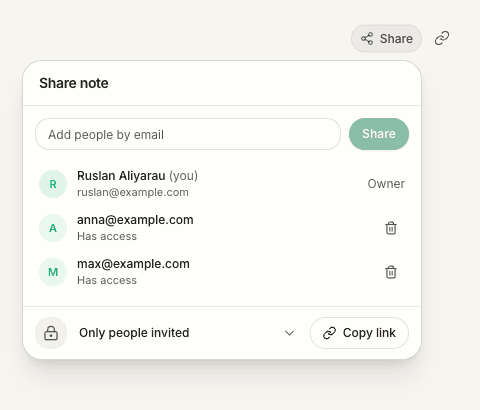
Use the address the recipient will sign in with. Adding an email to the meeting’s participant list does not share the note; use the sharing menu for that.
The invitation email and access are separate. If delivery failed, use Send again when available. The recipient may already have access even if the email was not delivered. Send them the copied link and the recipient guide.
Know which link button you are using
| Control | What happens |
|---|---|
| Copy link inside the sharing menu | Copies the document’s link and keeps the selected access mode. It does not turn an invitation-only note into a public one. |
| The separate link icon next to Share | Enables access for Anyone with the link and copies the link. The resulting notice confirms that access. |
For an invitation-only note, use Copy link inside the menu. Possessing that link alone does not let an uninvited person read the note.
Allow anyone with the link
In Share, change general access to Anyone with the link, then copy and send the link. The separate link icon performs that public-sharing action too. Anyone receiving the link can open the public note in a browser without signing in.
The public page shows the title and note body. It does not include the transcript, meeting participants, audio or your chat history. An invitation also grants access to the document's transcript and meeting data; the current app reader displays the note and transcript. Raw recorded audio and the owner's private chat history are not shared in either mode.
Check the note before sharing. Saving and synchronisation must complete before Oudden can make the latest content available. A shared document is not a frozen export; your later synchronised edits can become visible to readers.
Close access
To turn off public access, set general access back to Only people invited. People you invited still retain their individual access.
To remove an invited person, use Remove access beside their email. This does not turn off Anyone with the link. If you want to prevent both ways of reading, also change the general access mode.
Closing access cannot recall a copy someone has already made outside Oudden.
If sharing fails
- The content could not be saved: check the connection and resolve any saving warning, then retry.
- The email is rejected: check its spelling. You do not need to invite yourself as the owner.
- An invitation is waiting: ask the recipient to complete sign-in to Oudden with the invited email address. Opening the invitation email is not required to activate access.
- The recipient cannot open the note: check the access mode, the address in the list and their signed-in account.
- Copying failed: retry the copy action after checking the selected access mode. A clipboard error does not necessarily undo a preceding access change.
Related guides
Still need help?
If the guides did not answer your question, tell us what you need help with.