
Create and customise a note template
Create your own template, set the meeting context and section instructions, then save it for future transcripts.
A template tells Oudden what to look for in a conversation and how to organise the resulting note. You can start with a built-in template or create your own. Templates work with completed transcripts from meetings and imported audio.
To use an existing template straight away, follow Create a note from a transcript.
Open your templates
Open the account menu and choose Note templates. You can also open the template selector below a note's title and choose All templates.... If you are viewing the transcript, switch to the note view first.
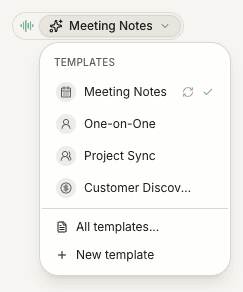
The manager separates your templates from the built-in templates. Use the search field to find one by its title.
Start with a copy or a blank template
- Adapt a built-in format: select it and click the copy icon, Copy to edit. Edit the new personal copy; the original stays unchanged.
- Start from scratch: click New template and replace its initial text with your own title, context and section instructions.
Choose a title you will recognise later, such as Project launch. There is no need to include a meeting date: you can reuse the template.
Describe the meeting context
In Meeting context, explain what kind of conversation this template is for and what you want from the note. For example:
We are discussing the client portal launch. Capture the risks and ways to address them. Keep the note brief and useful for the project team.
This field provides general direction. Put instructions for individual sections in those sections. You do not need to paste the transcript here.
Set up the sections
Each section has a heading and an instruction. The heading names the topic; the instruction explains what Oudden should extract from the conversation.
For a section called Risks, you could write:
List anything that could delay the launch. For each risk, describe the impact and the solution discussed in the meeting.
Use Add section for another topic. Reorder sections with the drag handle or Move section up and Move section down. Remove an unnecessary section with its delete button. A template must contain between 1 and 24 sections.
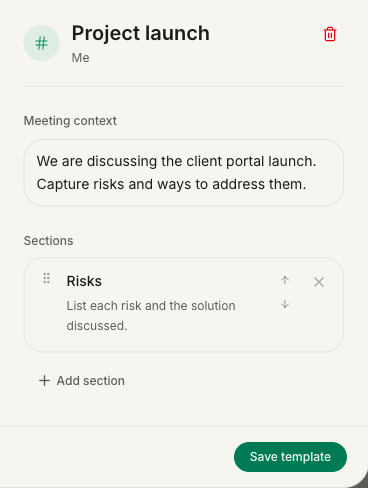
The example shows the editable part of the template window. For more examples, see Write instructions for a template.
Save and use the template
- Fill in the title, meeting context, and a heading and instruction for every section.
- In the standalone manager, click Save template.
- Open the note containing the transcript and select your saved template.
- Use Generate note to create the result.
When you open the template window from a note, the final button is Apply template. It saves your edits and selects the template for that note. It does not generate or replace the note's text by itself.
Save or apply before closing the window: closing discards unsaved form edits. Creating or copying a template already adds a new template, so that initial entry can remain even if you close without saving later edits.
Note generation uses an online AI service and the AI allowance of Pro. Before generating over existing text, read Generate again: the action replaces the current title and content after confirmation.
Edit or delete your template
Open one of your own templates, change its fields and save. The changes do not automatically rewrite previously generated notes. Use the updated template when generating a future note, or explicitly regenerate an existing one.
To remove a personal template, select it and click its Delete icon. Make sure you have selected the right template. If a note's selected template becomes unavailable, choose another available template before generating.
If you cannot save or apply
- The button is unavailable: check that the title, context, headings and instructions are not blank. Keep at least one section and wait for any current loading or saving operation to finish.
- You cannot edit a built-in template: use Copy to edit first.
- Saving failed: check your internet connection. Keep the window open and retry; copy any important edits before leaving it.
- The template has changed elsewhere: your edits remain in the form. Copy what you need before choosing Discard edits and reload, because that action discards the local form changes and loads the current version.
- The template is saved but the note is unchanged: selecting or saving does not generate a note. Follow the generation steps.
If the problem persists, contact support with the error message. You do not need to send the contents of a meeting.
Related guides
Still need help?
If the guides did not answer your question, tell us what you need help with.